Table Of Contents
Introduction Link to heading
At my current client, all applications that belong to a project live in a monorepo, which is a repository with multiple projects in it, as opposed to having 1 “deployable” per repository. In my case, this repository contains some APIs, a web frontend and a desktop app, plus the shared libraries they use, all C# and .NET code. Each application has its own pipeline, and every pipeline triggers on any change under src/. Change one line in the web frontend, and all the APIs go through the whole thing too, because the pipelines can’t tell that nothing in them changed.
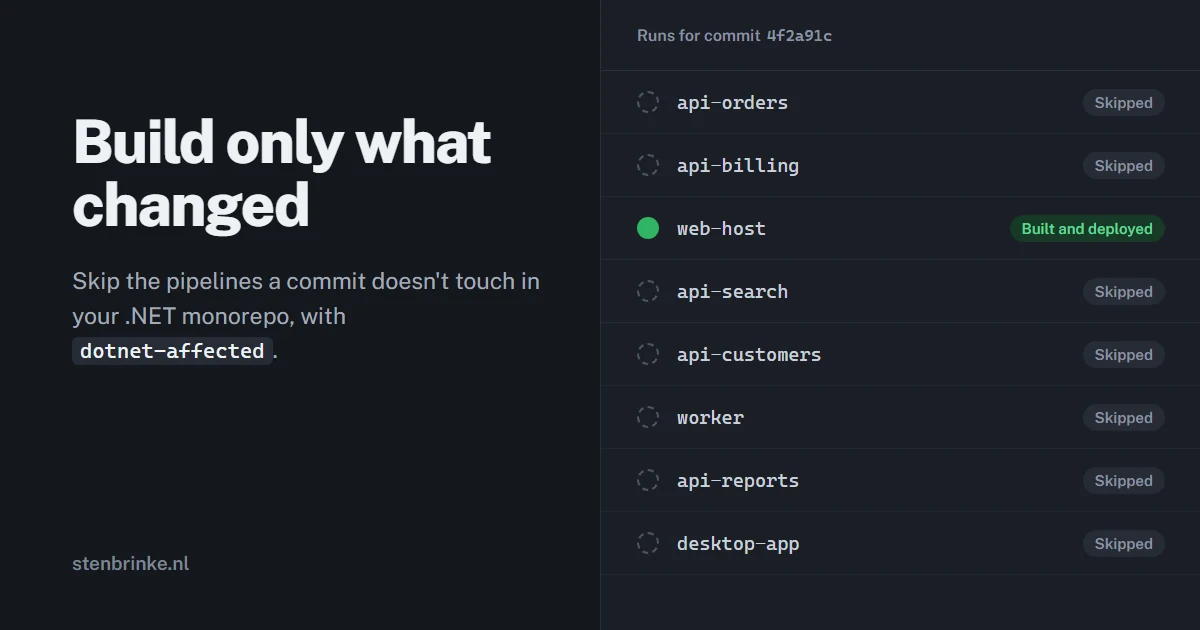
This gets frustrating for everyone in the team. In one week, pushes to the main branch started 41 pipeline runs. 36 of them built and deployed an application that hadn’t changed. Skipping those would have saved about 400 of the 480 agent minutes we spent that week. This means we would have been able to merge PRs faster, as we only have a limited amount of build agents, and the build queue was often clogged with unnecessary runs.
This concept is not new. There are already posts online about building only what changed in a monorepo. However, they often have one of these downsides:
- Requiring you to maintain a secondary mapping of project dependencies outside of your actual build system, which can easily get out of sync and lead to incorrect build decisions.
- Only using
gitto determine changes, which can’t account for project dependencies or shared files. - Requiring a specific merge strategy, which means I can’t use this solution in other projects, limiting its usefulness.
That doesn’t mean those posts lack value; they offer useful insights and approaches that might be enough for your use case. Still, I want my CI to work without constant attention or maintenance. Fortunately, there’s a better way to identify affected projects directly within the build system.
In this post I’ll show how I fixed this with
dotnet-affected, without any of the downsides mentioned above: every pipeline first asks whether its application is affected by the change, and skips the rest of the run if it isn’t. A quick check that saves a lot of time.
I found out about this project after asking about it
on the r/moderndotnet subreddit. Thanks to the community, and specifically to u/bupsnark, for planting the seed of this idea.
I’m using Azure Pipelines in this post, but the approach should work with other CI systems, too. Ask your agent to read this post for guidance on adapting the steps to your CI system, or feel free to reach out.
Your repo could also contain more than just .NET code, for example front-end code. dotnet-affected can also detect those changes, as long as they are related to a .NET project like in the wwwroot directory, or with a <None Include="FrontendCode/**" /> MSBuild item in your project file.
If you don’t meet those criteria, you’ll need to change the script to use both dotnet-affected and some other tool for detecting changes in non-.NET parts of your repository. There are many blog posts about this online, so I won’t cover it here.
Why Path Filters Aren’t Enough Link to heading
Let’s start at the beginning. The first solution you’d consider would probably be path filters, which allow you to trigger a pipeline based on changes to specific paths in your repository.
“Can’t we just let the Orders pipeline run when something in
src/Orders/changes?”
Great question! But sadly, no. That breaks as soon as you share code. The Orders API references src/Shared/Pricing, so a change there should build Orders too. You can add that path to the filter, but now you’re maintaining a second copy of your project references in YAML, and you’ll forget to update it when a reference is added, leading to skipped builds.
Path filters still work well the other way around: excluding files that no build reads, like docs/*, keeps the whole pipeline from starting, while dotnet-affected decides for everything else.
Next, consider package updates, changes to *.props files, or modifications to embedded resources or other shared files. This issue is more complicated than you think, and a solution that’s 90% correct will lead to skipped builds or unnecessary runs, which defeats the purpose of optimizing your pipeline.
Luckily, we’re .NET
developers! Your solution already knows which project depends on which: that’s the MSBuild project graph. And this is exactly what dotnet-affected uses to determine which projects need to be built based on the changes in your repository.
What dotnet-affected Does Link to heading
You give dotnet-affected two commits. It looks at the files that changed between them, finds the projects those files belong to, and then walks the project graph to find every project that depends on them, directly or indirectly. Changed .csproj files and NuGet package versions are taken into account too. I ran it on my repository against several months’ worth of changes, and it correctly identified the affected projects every time.

How dotnet-affected goes from a git diff to a list of affected projects, simplified.Based on the dotnet-affected docs
Install it as a local tool, so the version is pinned in your repository:
dotnet new tool-manifest # if you don't have one yet
dotnet tool install dotnet-affected
And then:
dotnet affected --from 4f2a91c --uncommitted none --format text
This compares 4f2a91c with HEAD and writes affected.txt with the full path of every affected project. When nothing is affected, it exits with code 166 instead of 0. --uncommitted none skips the check for uncommitted changes, which a CI agent doesn’t have.
What Do We Consider Affected? Link to heading
The goal is to avoid unnecessary builds without skipping any that are actually needed. dotnet-affected helps with this, but it’s not the full picture. We always want to run the pipeline when:
- Someone executes a run manually
- When someone manually triggers a run, they know what they are doing and likely want the pipeline to execute regardless of what changed.
- A file on the always-build list changed (more on that below).
You could add main/master or Git flow’s release or hotfix branches to this list so they always trigger a build, but for now I prefer to rely on the detection logic below.
Let’s Build it! Link to heading
Every application pipeline gets a new first stage that decides whether this application needs to be built. The build and deploy stages only run when the pipeline has determined that the application is affected.
# The pipeline for the Orders API
stages:
- stage: CheckAffected
  jobs:
  - job: Check
    pool:
      # We are running a bash script, so we'll need a Linux environment with bash available
      vmImage: ubuntu-latest
    steps:
    - checkout: self
      fetchDepth: 0 # The commit we compare against has to be in the history
    - task: UseDotNet@2
      inputs:
        useGlobalJson: true
    - script: dotnet tool restore # Install dotnet-affected from the local tool manifest

    # Check if the project is affected by changes since the last relevant commit
    - script: bash is-affected.sh src/Orders/Orders.Api.csproj
      name: decide
      env:
        SYSTEM_ACCESSTOKEN: $(System.AccessToken)

- stage: Build
  dependsOn: CheckAffected
  condition: and(succeeded(), eq(dependencies.CheckAffected.outputs['Check.decide.Affected'], 'true'))
  jobs:
  # Your existing build, test and publish jobs

# Deploy stages that depend on Build are skipped along with it
So far, the pipeline is straightforward. Let’s get to the interesting part: deciding whether a project is affected or not, which is done by is-affected.sh below. Note that we don’t have to manage a dependency graph manually, so the script is easy to maintain: it shouldn’t need any changes over time.
Pay special attention to the from variable, as this differs depending on whether the build is for a pull request or a regular deployment run. After this script, I’ll spend some time explaining this.
#!/usr/bin/env bash
set -euo pipefail

# Part of Sander ten Brinke's blog post about building only what changed in your .NET monorepo:
# https://stenbrinke.nl/blog/build-only-what-changed-in-your-dotnet-monorepo/

project="$1"

decide() {
  echo "##vso[task.setvariable variable=Affected;isOutput=true]$1"
  echo "Affected=$1: $2"
  if [ "$1" = false ]; then
    echo "##vso[task.logissue type=warning]Skipping the build: $2"
  fi
}

# Try to find the project that we want to check for changes.
# If it doesn't exist, we throw an error and stop the script.
[ -f "$project" ] || { echo "##vso[task.logissue type=error]No such project: $project"; exit 1; }

# Someone manually executing the pipeline wants a build, so affected status is ignored
if [ "$BUILD_REASON" = "Manual" ]; then decide true "manual run"; exit 0; fi

# For a pull request, we compare against the target branch: the first parent of the
# merge commit that Azure Pipelines builds.
if [ "$BUILD_REASON" = "PullRequest" ]; then
  # Bitbucket Cloud has no merge commit through Azure Pipelines, so we must check whether a merge commit exists; see the note in the post.
  # If you don't use Bitbucket Cloud, you can remove this check and set "from" directly.
  if git rev-parse -q --verify HEAD^2 >/dev/null; then
    from=$(git rev-parse HEAD^1)
  else
    decide true "Merge commit not found. We build to ensure we don't skip necessary builds."; exit 0
  fi
else
  # The commit of this pipeline's last successful run on this branch
  # NOTE: Explanation of why we do this is provided below.
  api_version="7.1"
  url="${SYSTEM_COLLECTIONURI}${SYSTEM_TEAMPROJECT}/_apis/build/builds"
  url+="?definitions=${SYSTEM_DEFINITIONID}&branchName=${BUILD_SOURCEBRANCH}"
  url+="&resultFilter=succeeded&statusFilter=completed"
  url+="&queryOrder=finishTimeDescending&\$top=1&api-version=${api_version}"
  from=$(curl -fsS --max-time 30 -H "Authorization: Bearer $SYSTEM_ACCESSTOKEN" "$url" \
    | jq -r '.value[0].sourceVersion // empty') || from=""
fi

# There's no earlier successful run to compare with. We should build.
if [ -z "$from" ] || ! git cat-file -e "$from^{commit}" 2>/dev/null; then
  decide true "no earlier successful run to compare with"; exit 0
fi

# Files the project graph can't see, but that change the build
# grep here excludes empty lines and comments, so the file is easier to maintain.
mapfile -t paths < <(grep -Ev '^\s*(#|$)' always-build.txt)
if [ ${#paths[@]} -gt 0 ] && [ -n "$(git diff --name-only "$from" HEAD -- "${paths[@]}")" ]; then
  decide true "a file on the always-build list changed"; exit 0
fi

rc=0 # Holds dotnet-affected's exit code if the command fails.
dotnet affected --from "$from" --uncommitted none --format text \
  --output-dir "$AGENT_TEMPDIRECTORY" --output-name affected || rc=$?

# Check if the project is affected according to the output.
case $rc in
  0)  # 0 means at least one project is affected.
    if grep -qxF "$BUILD_SOURCESDIRECTORY/$project" "$AGENT_TEMPDIRECTORY/affected.txt"; then
      decide true "$project is affected"
    else
      decide false "$project is not affected"
    fi ;;
  166) decide false "nothing is affected" ;; # 166 means nothing is affected.
  *) echo "dotnet-affected failed with exit code $rc"; exit $rc ;;
esac
Pull Requests Compare Against Their Target Branch Link to heading
The script uses a different value for the from variable depending on whether it’s a pull request or a regular deployment. This makes sense, considering the base for comparison is different in each case. Let’s break it down, as this is where the complexity lies.
For a pull request, we want to know what changed compared with its target branch. Azure Pipelines helps with this by building a merge commit! This merge commit has two parents: HEAD^1 is the target branch, and HEAD^2 is the pull request. Comparing HEAD^1 with HEAD shows exactly what the pull request changed.
The trick depends on one thing: HEAD has to be a merge commit. That’s what the script checks with HEAD^2: only a merge commit has a second parent. Azure Pipelines makes sure of that, in almost every case.
For Bitbucket Cloud, Azure Pipelines builds the last commit of the pull request instead,
because Bitbucket doesn’t expose a merge commit. HEAD^2 doesn’t exist then, so the script decides to always build. This is quite an ugly solution, as it removes all optimizations for PR pipelines. With my aim of providing a script that works in most/all scenarios, this is a necessary compromise.
If you don’t need Bitbucket Cloud support, you can remove the if/else block and set from directly.
Wait, Why Are We Doing An API Call To Azure DevOps? Link to heading
Oh boy. I’ve spent a lot of time going back and forth on this, and I believe this is the only reliable way to achieve a correct base for comparison in deployment pipelines. I haven’t found a better solution so far.
The short version: a pull request pipeline only checks the code; it doesn’t deploy anything. So its question is simple: what does this pull request change compared to its target branch? Once the pull request is merged, the pipeline on that branch builds the application and deploys it, for example to your test environment.
Now the question is different: what changed since the version that’s currently deployed? Usually, that’s the version from the previous merge. But if the run for that merge failed or was cancelled, the deployed version is older, and the changes in between still have to be deployed. Git can’t tell you which runs succeeded. Azure DevOps can, so we ask its API for the commit of the last successful run.
Click to expand for the long version
You just saw that for pull requests, HEAD^1 always gives us an accurate base to compare against. For regular deployments, it gets harder, because it depends on your merge strategy. A basic merge or a semi-linear merge ends in a merge commit, so HEAD^1 is the branch as it was before the pull request. “Rebase and fast-forward” puts every commit of the pull request straight onto the branch, and HEAD^1 only sees the last one.
I could compromise and decide to only support merge commits. I won’t though, as my goal is a solution that I can use in many projects.
But even then, the API call would remain necessary for “low-friction affected build detection”. Let me explain with the two remaining problems:
- A failed run gets buried. Say a merge changes the Orders API, but its run fails on a flaky test. The next merge only touches the Customers API, so
HEAD^1on the new run of the Orders API says Orders isn’t affected, and that run ends up green. So now the pipeline seems green, but the code has never been deployed! Relying onHEAD^1alone would miss these changes, and the Orders API would remain out of date until someone notices. You could argue a failure should be its own alert that the team investigates. I agree, but how many teams actually read the notifications for failed runs diligently? Remember, one of my goals was low maintenance, and this solution meets that goal. - A cancelled run gets dropped. People cancel runs on purpose, usually because a newer run is coming and they expect it to pick up the changes. With
HEAD^1, it doesn’t, and nobody gets an alert, because nothing failed. The pipeline stays green, but nothing gets deployed.
If I had to choose between skipping a needed deploy and deploying too much, I’d rather deploy too much. In my testing, however, this solution works quite well, and I don’t expect to run into any issues in practice.
If this leaves a sour taste in your mouth, you’re not the only one. On the other hand, maybe it doesn’t, and you find this a perfect solution to the problem. In that case, I’d love to know why. I might have a bit of tunnel vision here, so I’m very open to being challenged on this.
The Always-Build List Link to heading
Let’s get back to a part of the pipeline that’s easier to explain: the always-build list.
The project graph only knows about files that MSBuild knows about. Your pipeline YAML, global.json and nuget.config change how everything gets built, but to the graph they belong to no project at all. Change them, and dotnet-affected happily reports that nothing is affected.
That’s what always-build.txt is for. When one of these files changes, every pipeline builds:
# One git pathspec per line. '*' also matches '/'.
# Changes to any of these files trigger a full pipeline run for all projects.
# Keep this list short to avoid unnecessary runs.
pipelines/*
global.json
nuget.config

# Necessary because of https://github.com/leonardochaia/dotnet-affected/issues/202
# if you use Central Package Management with CentralPackageTransitivePinningEnabled set to true.
# Before using this file as a template in your project, check if this issue has been fixed
# so you can remove this entry. The consequence is that any package update will run all pipelines at this moment.
Directory.Packages.props
The Results Link to heading
I replayed the commits that landed on the main branch over two months through my detection script. More than 50% of the runs were unnecessary! In some weeks, more than 80% of the builds could have been skipped because the work focused on a specific area of the repository.
The check itself takes less than a minute. dotnet-affected runs in a few seconds; most of the time goes to the checkout and restoring the tool.
Finishing up Link to heading
I also want to mention alternatives such as
Nx,
Turborepo and
Incrementalist, which include built-in affected detection. They address similar challenges, though my testing showed that their detection can produce different results from dotnet-affected, sometimes triggering unnecessary runs or skipping runs that were necessary.
Skipping unnecessary runs shortens the queue and saves agent minutes, but a run that still has to happen takes exactly as long as before. If a run takes an hour, it still takes an hour. If you want to go further, look at where that time goes: caching NuGet packages and build output, running independent jobs in parallel, and more.
I’ve already applied most of these at my client. The next one I want to try is only testing the affected projects. dotnet-affected can write a solution filter (.slnf) with the affected projects, and dotnet test accepts that. That’s for another post, as I first want to weigh the extra complexity against the potential savings. You could even consider having 1 pipeline for building apps, as dotnet-affected could determine which ones actually need to be built, saving even more time and resources. I’ll leave that as an exercise for the reader, and challenge you to write a blog post with your own thoughts on that topic!
I had a lot of fun writing this post. I have quite a backlog of topics I want to write about, but in this age of AI it’s difficult to find the motivation for writing about things an agent can provide for you in seconds. This post feels very different, as this is something I feel like I’ll start introducing in all codebases I work in. I hope this proves useful to others facing similar challenges, so feel free to share and let me know your experiences with it.
Finally,
check out the dotnet-affected project and support the project or maintainer,
Leonardo Chaia ❤️.
Did you enjoy this post?
